
The Amazon Search Term Report: How to Read It and What to Do Next
 By Monjur HossainFounder & Amazon Strategy Lead
·
Published
·
Last reviewed
·19 min read
By Monjur HossainFounder & Amazon Strategy Lead
·
Published
·
Last reviewed
·19 min read
The Amazon search term report shows the exact searches shoppers typed before clicking your ads, with clicks, spend, orders and ACoS for each. Download it from the reporting area of the Ads console, then sort every term into four actions: harvest winners to exact match, negate bleeders, adjust bids, or fix the listing.
The Amazon search term report is the single most useful file in your advertising account. It tells you exactly what shoppers typed into the search bar before they clicked on your ad, and what happened next. Most sellers download it, sort by ACoS, pause a few things and close the spreadsheet. That leaves a lot of money on the table.
This guide goes further. We will cover where to find the report on amazon.com and other marketplaces, which columns deserve your attention, and a simple four-bucket method that turns every row into a clear decision. You will also see a worked example, a weekly routine and how the report fits with Amazon's other search data.
What is the Amazon search term report?
The Amazon search term report lists the shopping queries that triggered your ads and led to at least one click. Amazon describes it in its Sponsored Products best practices guide as a way to see the search terms that resulted in a click, so you can refine your keywords and targets.
It is one of six Sponsored Products reports Amazon lists in its guide to measuring and improving campaigns. The others are the targeting, advertised product, placement, performance over time and purchased product reports. The search term report answers the most practical one: what are people actually searching for when they find me?
Keywords vs customer search terms
This is the distinction that trips people up. A keyword is what you bid on. A customer search term is what the shopper typed.
Say you bid on the broad match keyword "bamboo cutting board". Your ad might show for "large bamboo chopping board", "cutting board set for kitchen" or even "bamboo plates". The report puts these side by side: the targeting column shows your keyword, and the customer search term column shows the shopper's actual words.
With exact match the two columns look almost identical. With broad, phrase and automatic targeting they can differ a lot, and that gap is where most of your waste and new opportunities hide.
What the report includes (and leaves out)
Each row is a combination of campaign, ad group, targeting, match type and customer search term for the date range you chose. Against each row you get impressions, clicks, click-through rate, cost per click, spend, orders, sales, conversion rate, ACoS and ROAS.
Some rows will show a product code such as B0XXXXXXXX instead of words. Those are ASINs. They appear when your ad was shown on, and clicked from, another product's detail page, usually through automatic targeting or product targeting. They are worth as much attention as the keyword rows.
Here is what it does not tell you:
- Which product sold. The report works at ad group level. If an ad group holds five products, you cannot see which one the shopper bought from this report alone.
- Searches with no clicks. Terms that earned impressions but never a click do not appear, so you cannot judge everything you were shown for.
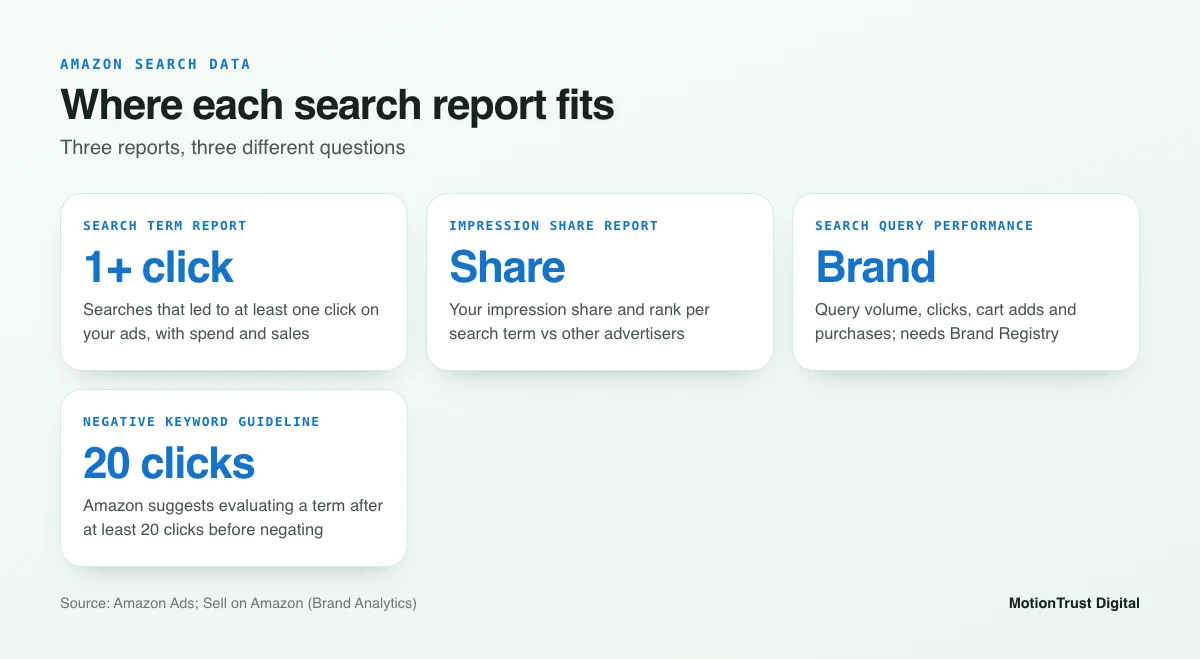
- Your share of the market. It shows your results, not how much of the search you captured. That is what the impression share report is for, which we cover later.
The first gap has a simple fix. Amazon's own advice is to use separate campaigns or ad groups for each product group and to keep ASINs from the same category together. If you keep one product, or a tight group of variations, per ad group, every search term maps cleanly to the product it sold.
How do you download the search term report?
Amazon renames menus from time to time, so treat the labels below as a guide rather than gospel. The path has been broadly the same for years.
Sponsored Products
- Open the Amazon Ads console. From Seller Central you can reach it through the Advertising menu and Campaign Manager.
- Go to the reporting area (usually Measurement & Reporting, then Sponsored ads reports).
- Create a report. Choose Sponsored Products as the ad product and Search term as the report type.
- Pick the time unit. "Summary" gives one row per term for the whole period. "Daily" splits each term by day, which is useful for trend checks but makes the file much larger.
- Set the date range, name the report, then run it. Download the file when its status shows as completed.
Sponsored Brands
Yes, there is a Sponsored Brands search term report, and you create it the same way: pick Sponsored Brands as the ad product, then the search term report type. If you run more than one Sponsored Brands format, check which formats your report covers before you compare results.
Two differences matter. Sponsored Brands ads often feature several products, so results sit at campaign or ad level rather than one ASIN. And they are often judged on brand goals as well as direct sales, so a slightly higher ACoS can be acceptable if a term brings new shoppers to your brand.
Choosing a date range
Too short, and you will react to noise. Too long, and old behaviour hides recent changes. For most accounts we work with a rolling 30-day view for decisions and a 60- to 90-day view for low-traffic terms that need more data.
Two practical rules help:
- Leave out the last few days. Sales attributed to recent clicks can still be coming in, so recent days often look worse than they are. Judge them next week.
- Keep an archive. The report only covers a limited window of history, so download it on a schedule and save each file. Six months from now you will want to compare seasons.
Running it for several marketplaces
If you sell on amazon.com and amazon.co.uk, or on .de and .ca too, each marketplace has its own campaigns and its own report. Run them separately. Search behaviour differs even between the US and the UK: "cutting board" and "chopping board" perform very differently on each site, so never copy a negative list across without checking it.
Which columns matter most?
The file has a lot of columns. You need to understand about ten of them. We keep definitions short here, because we cover the ratio metrics in depth in our guides to what ACoS means and ACoS and TACoS benchmarks.
Impressions, clicks, CTR and CPC
Impressions are how often your ad was shown for that term. Clicks are how often a shopper clicked. Click-through rate (CTR) is clicks divided by impressions. A low CTR on a term that is clearly relevant often points to your main image, price or review count rather than the keyword itself.
Spend is what you paid in total. Cost per click (CPC) is spend divided by clicks. A steady rise on your best terms usually means more competition for that search.
Orders, sales and conversion rate
Orders and sales are attributed to the ad click within Amazon's attribution window, and the column name tells you which window applies to that report (for example "7 Day Total Sales"). Conversion rate is orders divided by clicks. This is the column that tells you whether the term brings buyers or browsers.
ACoS and ROAS
ACoS is spend divided by sales, shown as a percentage. ROAS is the inverse: sales divided by spend. They tell the same story, so pick the one your team uses and stick with it.
The figure that matters is not ACoS on its own. It is ACoS compared with your target, which comes from your margin. If a product makes $9.00 profit before advertising on a $29.99 sale, your break-even ACoS is about 30%. A term at 35% ACoS is losing money on that product. On a product with a 45% margin, the same term is profitable.
From columns to decisions: the four buckets
Every row in the report needs one of four actions, or none. Here is the model we use, and the rest of this guide takes each bucket in turn.
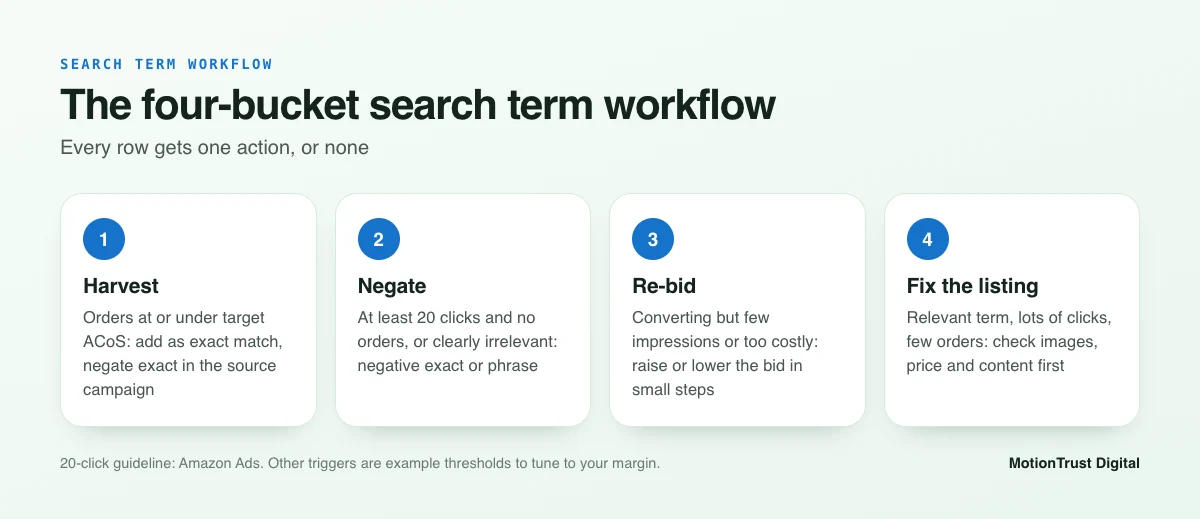
| Bucket | Typical trigger | Action |
|---|---|---|
| 1. Harvest | Orders at or under your target ACoS, enough clicks to trust it | Add as exact match keyword (or product target for ASINs) |
| 2. Negate | At least 20 clicks and no orders, or clearly irrelevant | Add as negative exact or negative phrase |
| 3. Re-bid | Converting, but too few impressions or too expensive | Raise or lower the bid on the matching keyword |
| 4. Fix the listing | Relevant term, plenty of clicks, poor conversion; or low CTR | Check images, title, price and content before blaming the keyword |
The 20-click trigger comes from Amazon's own Sponsored Products targeting guide. The other triggers depend on your margin and category, so treat them as starting points to tune.
Amazon PPC Audit Tool
See where your ad spend is leaking
Run your campaign data through our free audit tool to spot wasted spend and terms worth scaling before you start sorting rows by hand.
Run the free PPC auditBucket 1: harvesting winning search terms
Keyword harvesting is the process of taking search terms that sell from your discovery campaigns (automatic, broad and phrase) and giving them their own exact match keyword. It is how most well-run accounts grow.
Amazon's advice points the same way. Its article on common sponsored ads mistakes recommends migrating successful search terms to tighter match types, and its best practices guide suggests combining automatic and manual targeting rather than relying on one.
What counts as a winner
A winner in your Amazon search term report has three things: it converts, it does so at or under your target ACoS, and it has enough data behind it to be trusted. One order from three clicks is a hint, not a winner.
As an example rule of thumb, many sellers start with "at least two orders and ACoS at or below target over 30 days". Adjust it for your price point. A $200 product may never get two orders from one long-tail term in a month, while a $10 consumable might need five or more before you can trust it.
Do not forget the ASIN rows. If a competitor's product page keeps sending you profitable clicks, add that ASIN as a product target in a manual campaign. That is ASIN harvesting, and it is often overlooked.
Moving winners to exact match
Add the winning term as an exact match keyword in a manual campaign, ideally in an ad group that holds only the product it sold. Start the bid close to the CPC the term was already paying, or slightly above if you want more impressions.
Negating the harvested term in the source campaign
This step is the one people skip. Once a term has its own exact keyword, add it as a negative exact in the auto or broad campaign it came from. Otherwise both campaigns can bid on the same search, your data gets split across them and you lose the control you just created.
Use negative exact here, not negative phrase. Negative phrase would also block longer searches that contain the term, and those longer searches are exactly what you want your discovery campaigns to keep finding.
Bucket 2: cutting bleeding search terms
Bleeders are terms that spend money and do not sell. In a large account they can quietly eat a big share of the budget, which is why this bucket usually delivers the fastest savings.
Spotting clicks with no orders
Filter your Amazon search term report for rows with zero orders, then sort by spend from highest to lowest. The top of that list is where to start.
Amazon's targeting guide gives a clear benchmark: before adding a keyword as a negative target, evaluate its performance after it has received at least 20 clicks. That protects you from cutting a term that just had an unlucky week.
There is one sensible exception. If a term is plainly irrelevant, such as "plastic cutting board" when you sell bamboo, you do not need 20 clicks to know it will not convert. Relevance is your call. Performance needs data.
Negative exact or negative phrase?
Sponsored Products offers two negative keyword match types: negative exact and negative phrase.
- Negative exact blocks that precise search only. Use it when the term is close to relevant but does not convert, for example "bamboo cutting board for cheese" on a large chopping board.
- Negative phrase blocks any search that contains the phrase. Use it for words that will never suit your product, such as "plastic", "glass" or a size you do not make.
For ASIN rows that bleed, add the ASIN as a negative product target. Amazon also lets you exclude whole brands where their product pages do not meet your goals. Our full guide to Amazon negative keywords covers campaign-level versus ad group-level negatives and how to keep a shared list tidy.
Bucket 3: re-bidding terms that are close to target
Not every term is a clear yes or no. A lot of rows sit in the middle: they sell, but either not often enough or at too high a cost. These need a bid change, not a negative.
Raising bids on efficient, low-impression terms
Look for terms with a good conversion rate and a low ACoS but only a few hundred impressions. Amazon's measurement guide is direct about this: where impressions are low but CTR is high, consider raising bids or budgets, and check whether a low bid is the reason the ad is rarely shown.
Raise the bid in small steps (as an example, 10–20% at a time), then give it a week or two before the next change.
Lowering bids on expensive converters
The opposite case: terms that sell steadily but above your target ACoS. Pausing them throws away real sales; a lower bid usually keeps some volume at a cost you can live with.
A simple way to set the new bid is to work from your target cost per click. Multiply your conversion rate by your target cost per order. If the term converts at 8% and you can afford $7.50 per order, your target CPC is about $0.60. If you are paying $0.95, that tells you how far to come down.
For more on bid rules, dayparting and placement modifiers, see our guide to Amazon PPC bidding strategies.
Bucket 4: when the problem is the listing, not the keyword
Most guides leave this bucket out, yet it often holds the biggest gains. Sometimes the keyword is right, the shopper clicks, lands on your page and leaves. Cutting the keyword will not fix that.
High CTR, low conversion
Amazon's article on common campaign mistakes calls this detail page misalignment: clicks without sales usually mean a gap between what the ad promised and what the product page delivers. Shoppers liked what they saw in the results, then found something they did not like.
When a relevant, high-traffic term has a good CTR and poor conversion, check the page before the bid:
- Does the title and first image clearly show the feature the shopper searched for? Someone searching "with juice groove" needs to see the groove.
- Is the price in line with the products around you on that search?
- How do your rating and review count compare with the top results?
- Do the bullets and A+ content answer the obvious questions (size, material, care)?
- Is the right variation being shown, and is it in stock?
If the product genuinely lacks what the term describes, negate it. If the product has it but the page hides it, fix the page. Our guide on how to optimise an Amazon listing walks through each element.
Low CTR on relevant terms
Amazon's mistakes article also suggests reviewing search term reports for terms with plenty of impressions but poor CTR, as a sign the keyword and product are misaligned. Sometimes that is true and the answer is a negative.
But if the term is clearly relevant and your CTR is low, the issue is usually in the search results themselves: your main image, title, price or star rating compared with the products next to yours. Look at the actual results page for that search.
Amazon Listing Optimisation
Turn clicks into orders on your detail page
If your search terms get clicks but not sales, the fix is usually on the page. Our team rewrites titles, bullets and images around the terms your buyers really use.
See listing optimisationHow to analyse your Amazon search term report in a spreadsheet
You do not need software to do good Amazon search term report analysis. Excel or Google Sheets and a pivot table will cover most accounts. Here is a workflow you can rebuild as your own template.
Aggregating by search term
- Download a summary Amazon search term report for your chosen range, leaving out the most recent few days.
- Paste it into a raw data tab. Do not edit this tab, so you can always check back against the original.
- Build a pivot table with customer search term as rows and impressions, clicks, spend, orders and sales as summed values.
- Add calculated columns: CTR (clicks ÷ impressions), CPC (spend ÷ clicks), conversion rate (orders ÷ clicks) and ACoS (spend ÷ sales).
Aggregating matters because the same term can appear many times, once for each campaign, ad group and keyword that matched it. A term that looks small in each row can be one of your biggest spenders in total.
Before you act, filter back to campaign level, because negatives and new keywords are added in specific campaigns.
Adding target cost per order
Add one more column for each product or ad group: your target ACoS, based on margin. If you keep one product per ad group, a simple lookup against a margin table does the job. This is what stops you from applying a single "30% is bad" rule to products with very different margins.
Flagging actions with simple formulas
Then add an "Action" column that uses IF statements to label each row. Below is an example for a $29.99 bamboo cutting board with a break-even ACoS of 30% and a target of 25%. All figures are illustrative.
| Customer search term | Impr. | Clicks | Spend | Orders | Sales | ACoS | Action |
|---|---|---|---|---|---|---|---|
| bamboo cutting board set | 3,050 | 84 | $71.40 | 9 | $269.91 | 26.5% | Harvest to exact |
| organic bamboo cutting board | 410 | 14 | $11.20 | 3 | $89.97 | 12.4% | Raise bid |
| b0xxxxxxxx (competitor ASIN) | 640 | 12 | $9.60 | 2 | $59.98 | 16.0% | Harvest as product target |
| bamboo board for cheese | 2,240 | 31 | $24.80 | 1 | $29.99 | 82.7% | Lower bid or negative exact |
| large wooden chopping board | 1,980 | 23 | $20.70 | 0 | $0.00 | n/a | Negative exact |
| plastic cutting board dishwasher safe | 2,900 | 5 | $4.50 | 0 | $0.00 | n/a | Negative phrase "plastic" |
| bamboo cutting board with juice groove | 3,400 | 96 | $86.40 | 2 | $59.98 | 144.0% | Check listing first |
Look at the last row. Ninety-six clicks with a healthy CTR means shoppers want this. Two orders means the page is not convincing them. If the board has a juice groove but the images do not show it, that is a listing fix worth far more than a negative keyword.
Once the labels are in, sort by action and make the changes in the Ads console or through a bulk file.
Keep a simple change log: date, term, action and reason. When you review the report next month, you will be able to see whether your changes worked.
Search term report vs impression share report vs Search Query Performance
The search term report only shows searches you paid for. Two other Amazon tools fill in the rest of the picture.
Search term impression share report
Amazon launched the search term impression share report for Sponsored Products in March 2021. It sits in the Report Center and shows, for each search term, your account-wide impression share and impression rank compared with other advertisers. It is available in the US, the UK and other marketplaces.
Put it next to your Amazon search term report and look for terms that convert well but where your impression share is low. Those are the clearest places to raise bids or budgets, because you already know the term sells and you can see how much of the search you are missing.
Brand Analytics Search Query Performance
If you are brand registered, Amazon Brand Analytics includes the Search Query Performance dashboard. It lists the searches customers use to find your brand, with query volume, impressions, clicks, cart adds and purchases. It requires a Professional selling account and the Brand Representative role in Brand Registry.
The key difference is that Search Query Performance covers organic and paid activity together. Use it to find searches where your brand converts well organically but you do not advertise, and to check whether a term you are paying for also has strong organic results. Our Amazon keyword research guide and free keyword mapper help you organise what you find.
How often should you review your Amazon search term report?
There is no single right answer, but most active accounts need a short weekly check and a deeper monthly review.
Weekly routine
Once a week, download the last 30 days of your Amazon search term report (minus the most recent few) and work through two buckets:
- Bleeders that have crossed 20 clicks with no orders, plus anything clearly irrelevant.
- Obvious winners from your auto and broad campaigns that are ready for exact match.
Monthly deep dive
Once a month, look at a longer window and work through the re-bid and listing buckets. Pull the impression share report and, if you have it, Search Query Performance. Check your campaign structure too: Amazon's mistakes article flags inefficient structure without clear naming conventions as a common problem, and a messy structure makes every report harder to read.
Steady, small, regular changes tend to work better than big monthly overhauls.
When to get help
If your report runs to thousands of rows across several marketplaces, the weekly routine becomes a part-time job. That is usually when sellers bring in an Amazon PPC management agency. If you just want a second opinion, a free Amazon audit is an easy place to start.
Launching a new product with no search term data yet? Our Amazon keyword research service can give you a starting list to test.
Amazon PPC Management
Hand your weekly search term work to us
We review your search terms every week, harvest winners, cut waste and flag listing issues, with a clear log of every change we make.
Talk to our PPC teamFrequently asked questions
What is the search term report on Amazon?
It is an advertising report that lists the actual searches shoppers typed before clicking your ad, alongside the keyword or target that matched them. For each search you see impressions, clicks, spend, orders, sales and ACoS. Amazon describes it as showing the shopping queries that resulted in at least one click, so you can refine your targeting.
How do I download the search term report in Seller Central?
Open the Amazon Ads console from the Advertising menu in Seller Central, then go to the sponsored ads reports area. Create a report, choose Sponsored Products or Sponsored Brands, select the search term report type, pick a time unit and date range, and run it. Download the file once its status shows as completed.
What is the difference between a keyword and a customer search term?
A keyword is what you bid on in your campaign. A customer search term is what the shopper actually typed. With exact match they are usually the same. With broad, phrase and automatic targeting, one keyword can match dozens of different searches, which is why the report is so useful for finding waste and new ideas.
Why do ASINs appear in my search term report?
An ASIN in the customer search term column means your ad was shown on, and clicked from, that product's detail page. This usually comes from automatic targeting or product targeting. Treat these rows like keywords: harvest profitable ASINs as product targets in a manual campaign, and add poor performers as negative product targets.
How far back does the Amazon search term report go?
The report covers a limited window of history, and Amazon can change how far back it goes, so do not rely on old data being there later. The safe habit is to download your report on a regular schedule, weekly or monthly, and keep the files in a shared folder. That way you can compare seasons and years.
Why doesn't my search term report show which product sold?
The report works at campaign and ad group level, not product level. If an ad group contains several products, you cannot tell which one the shopper bought from this report alone. The fix is structural: keep one product, or a tight group of variations, per ad group, which follows Amazon's advice to group similar products together.
How do I find new keywords from the search term report?
Look in your automatic, broad and phrase campaigns for searches that have converted at or under your target ACoS with enough clicks to trust. Add them as exact match keywords in a manual campaign, then add the same terms as negative exact in the source campaign so the two do not compete for the same search.
Sources
- Amazon Ads — Best practices for your Sponsored Products ads
- Amazon Ads — A guide to targeting with Sponsored Products
- Amazon Ads — 5 common sponsored ads campaign mistakes (and how to fix them)
- Amazon Ads — How to measure and improve your campaigns
- Amazon Ads — Search term impression share report for Sponsored Products
- Sell on Amazon — Amazon Brand Analytics
Monjur Hossain
Founder & Amazon Strategy Lead, MotionTrust Digital
Monjur incorporated MotionTrust Digital in September 2022 and leads Amazon strategy across the client base. Eight years in e-commerce and marketplace marketing, now on Amazon only — keyword strategy, listing architecture and advertising structure for growing brands.
MonjurAgencyTry the free tools
Seven Amazon tools that run in your browser — profit and ACoS calculator, PPC auditor, listing checker and more. No account, nothing uploaded.
Try the free toolsLast reviewed . We update articles in place rather than republishing at a new URL, so the link you have keeps working.
Keep your ACoS target working for you
Break-even ACoS is the starting point. One email a week with our newest PPC articles on targets, bids and wasted spend, plus listings and SEO if you want them. Email us to join.